Advantage+ creative: what it changes, how to turn it off
What Meta's Advantage+ creative enhancements can change in your ads, which use generative AI, and how to turn them off on one ad or many.
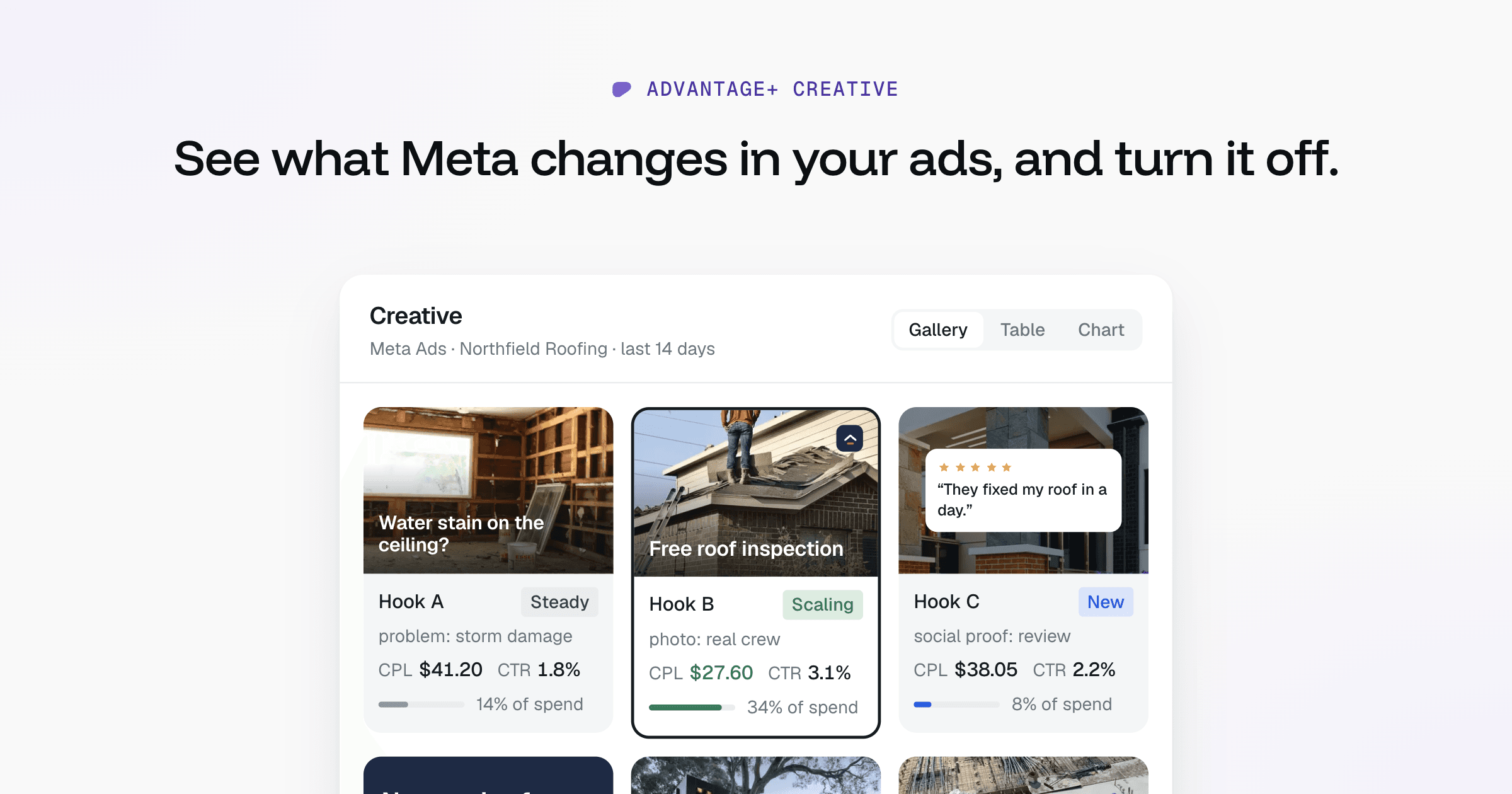
Advantage+ creative is a set of automatic changes Meta can make to your Facebook and Instagram ads. When it's on, Meta can adjust the images, videos and text you upload, add things like music, overlays or comments, and show different variations of each ad. Meta's aim is a version your audience is "more likely to interact with." Some enhancements may be on by default, and you can turn them off at any time, on a single ad or on many at once. If you run Facebook ads for your business, it's worth checking which ones are on before your ads go live.
What is Advantage+ creative in Facebook ads?
Advantage+ creative is a group of creative enhancements in Meta Ads Manager and Meta Business Suite. According to Meta's About Advantage+ creative page, the media and text you upload may be adjusted to help improve ad performance, while keeping the core message of your campaign.
Which enhancements you see depends on your ad format, your placements and whether you use a catalog. Meta also says the changes can vary with who in your audience sees the ad, so two people can see two different versions of the same ad. You switch enhancements on or off at the ad level.
This guide covers only what happens to your ad creatives after you upload them. Third-party AI tools you use to make images before upload are a separate matter.
What Meta can change in your ad
Meta's page lists 30 Advantage+ creative enhancements and explains each one when you expand its name. It marks 16 of them "AI" because they use generative AI or have the option to. We've sorted them into four groups.
Changes to how your picture or video looks
- Add animation (AI)
- Add video effects (AI)
- Adjust brightness and contrast
- Background generation (AI)
- Image touch-ups (AI)
- Video touch-ups (AI)
- Visual touch-ups (AI)
Add animation can turn an eligible static image into a short video by adding movement like panning, zooming or rotating. Visual touch-ups handles image expansion: it crops and expands your media to fit more placements and generates new pixels to fill the extra space. Video touch-ups crops or expands a video to 9:16 or 4:5. If your ad shows real work or a real product, check these first.
Text Meta writes or rewrites
- Dynamic description
- Enhance media text (AI)
- Show summaries (AI)
- Text generation (AI)
- Text improvements (AI)
- Translations (AI)
- Video subtitles (AI)
Text generation can create up to 5 variations of your primary text and headline. Text improvements takes words and phrases from your ad copy and shows them on or around the creative, for example as a text overlay. Enhance media text rewrites the text overlay on an image ad to suit your audience, and Meta then shows either your original or a variation. Translations can translate the text, voice and image overlays in your ad into your audience's preferred language.
A related setting, Optimize text per person, moves your words around. When it's on, Meta says the text you provide may appear anywhere in your ad and next to any other text you've provided, so its ad system can personalize the ad for each person.
Things Meta adds or lays out differently
- Add details to ad layout
- Add dynamic overlays
- Add music (AI)
- Add overlays (AI)
- Add standard label
- Create sticker CTA (AI)
- Enhance CTA (AI)
- Flex media
- Highlight carousel card
- Profile end card
- Relevant comments
- Reveal details over time
- Show spotlights
Add music can add AI-generated music or music from Meta's library. Flex media can show one image or video in extra placements when Meta sees a chance to improve campaign performance. Relevant comments picks comments on your ad that are likely to help it perform and shows them on Facebook and Instagram. Meta says Reveal details over time and Show spotlights may be on by default for single image or video ads.
Catalog and store features
- Add product browsing
- Add product tags
- Store locations
Meta says Add product tags may be on by default when you use the traffic or sales objective with an eligible catalog. Background generation and Image touch-ups, listed above, are only available for Advantage+ catalog ads. Image touch-ups fits product images to 4:5 for Facebook and Instagram Feed and 9:16 for Reels and Stories.
Generative AI labels and limits
Meta says ad images created or significantly edited with certain of its generative AI features may show AI info on the About this ad screen, or an AI info label next to the Ad label.
Not every advertiser gets every generative AI feature. Meta says some industries, such as financial services and health, may not have them all yet. The same goes for housing, employment, credit, social issue, election and political ads, and for some countries.
Why a business owner should care
With enhancements on, people may see a version of your ad that differs from the one you approved. Prices, offers, warranty terms and claims have to stay right. A rewritten line, an AI summary or an added text overlay can change what the ad promises, and Meta says Enhance CTA can add details such as "X% off" or "Free shipping" to some calls to action. If anyone checks your ads before they run, they need to see the exact words that go out.
A touched-up photo or an expanded background can make a roof or a product look different from what the customer gets, and you'll hear about it when they call. If your brand has rules for colors, fonts or tone, a touch-up or an added overlay can break those too. Meta says its branding feature will try to use your brand preferences, but you still need to check the preview.
Changes made person by person also make your results harder to read. When Meta mixes your text and changes your visuals for each viewer, it's hard to say which version brought in the lead or the sale, so you don't know what to keep for your next ads.
How to turn off Advantage+ creative
You can turn enhancements off on a new ad, on a live ad, in bulk, and for creative features Meta is still testing. Meta's guide to turning off Advantage+ creative enhancements has the full steps.
On a new ad
- In Meta Ads Manager, click + Create and go through the steps until you reach Ad setup.
- Choose Create ad, then pick your ad format (Single image or video, or Carousel).
- In Ad creative, click Set up creative and go on until you reach Enhancements. Turn off the ones you don't want, then click Done. As you go, Meta marks default features with an On by default label.
- Click Review defaults, next to Advanced preview. It lists every creative feature that's on by default for this ad, grouped by category. Click Edit on a category to jump to the part of ad setup where you can opt out.
- In the Ad preview, click Expand to see Advanced preview.
- Click the Placements tab to see how the enhancements can vary by placement, such as Facebook Feed or Instagram Stories.
- Open the Advantage+ creative tab and turn off anything still on. Click Save, finish the ad and publish.
Don't skip Advanced preview. Meta says some enhancements can only be turned off there and don't show up in Ad creative.
Review defaults covers more than the 30 enhancements. Its five categories are ads experiences (formats like carousel or collection that Meta may build from your assets), Advantage+ creative enhancements, Advantage+ creative translations, related media (images or videos from your other ads or connected sources) and personalized destinations (sending people to the experience Meta judges most likely to lead to a conversion). Meta says Review defaults is available to all advertisers using Ads Manager. Features you turned on yourself don't show there.
On an ad that's already running
- In Ads Manager, click Ads and tick the box next to the ad.
- Click Edit. The Advantage+ creative section shows how many enhancements are on. Click Edit there and turn off the ones you don't want.
- In the Ad preview, click Expand to see Advanced preview, open the Advantage+ creative tab and turn off the rest. To switch everything off in one go, toggle off All optimizations.
- Click Save, then Publish.
On many ads at once
- In Meta Ads Manager, click the Ads tab at the top of the page.
- Tick the box next to each ad you want to change. They all need the same ad format.
- Click the menu button next to Edit and choose Advantage+ creative. You'll see which enhancements are on for each ad.
- In the Edit all selected ads section, click Edit.
- Untick the enhancements you want off. Your choices apply to every ad you picked.
- Click Save to draft or Publish.
Optimize text per person
Go to the ad preview, click Expand to see Advanced preview and open the Advantage+ creative tab. Meta says you turn Optimize text per person off by switching off all of these:
- For image ads: visual touch-ups, relevant comments, add overlays and text improvements.
- For video ads: video touch-ups, relevant comments and text improvements.
Toggling off All optimizations works too. Then click Save.
The account setting for features in testing
If you opt in to testing, Meta says Advantage+ creative enhancements and other creative features still in testing may be applied to eligible campaigns. To opt out of testing new creative features:
- Go to Advertising settings in Meta Ads Manager.
- Find the Creating ads section and click Creative features.
- Uncheck Test new creative features.
Only eligible advertisers have this option, so you may not see it.
Check again each time you build an ad
Turning features off on one ad doesn't settle it for the next, so make this part of your ad creation process. Every time you build or duplicate an ad, start with Review defaults, then open the Advantage+ creative tab in Advanced preview to catch anything you turned on yourself. Meta also tests new creative features, so the list can change over time.
How to keep control of your ads
Turn enhancements off, then test your own versions on purpose, one change at a time. That's how we run the Meta ads we manage.
Make your own creative assets for each placement you run. If a placement needs a different shape, such as a tall version for Stories and Reels, make a finished file in that aspect ratio so you aren't leaving image expansion to Meta. Put any text overlay on the image yourself, in your brand's fonts, where you can proofread it. Write your primary text and headlines to be read together, and keep Optimize text per person off so Meta doesn't move them around.
Change one thing per test: the image, the opening line, the headline or the offer. If two ads in an ad set differ in five ways, the result can't tell you which change mattered.
If you want to try an enhancement
Run it as an A/B test, so you can see whether that one feature helps your ads perform:
- Duplicate an ad that's already working.
- In the copy, turn on one enhancement. Leave everything else the same, including the ad set and the audience targeting.
- Open Advanced preview. In the Advantage+ creative tab, the arrows on each enhancement card show possible variations.
- Once both ads have spent enough to judge, compare cost per lead or cost per purchase against your target. Our cost per lead calculator does the math. Online stores can use the ROAS calculator and their break-even ROAS.
- Keep the enhancement only if the copy wins and every version you saw was accurate.
FAQ
Is Advantage+ creative on by default?
Some creative features are, and Meta marks them with an On by default label during ad setup. To see them all for one ad, click Review defaults, next to Advanced preview, while you create the ad or edit a draft. You can turn enhancements off at any time.
Does Advantage+ creative improve performance?
Meta says the enhancements are meant to help improve ad performance, but its help pages don't say by how much. To see how your ads perform with one turned on, test it against the same ad with it off.
How many creatives should I make if I turn it off?
Meta's Advantage+ creative pages don't set a number. We'd rather have a few clearly different ideas, each built in the different formats and aspect ratios we run, than one image that Meta reworks. Different ideas also make for a cleaner test.
Can I turn off Advantage+ creative for my whole account?
Meta's help pages describe turning enhancements off at the ad level, per ad or in bulk. The Test new creative features setting covers only the features Meta is still testing.
BetterSEM manages Meta ads for home service businesses and online stores.
Keep reading.


Book a free 20-minute call.
We'll go through your accounts with you on a shared screen.
- Where your money is going
- Whether your tracking counts the right things
- The three things we'd fix first, and what each one is worth
Calls are over video.