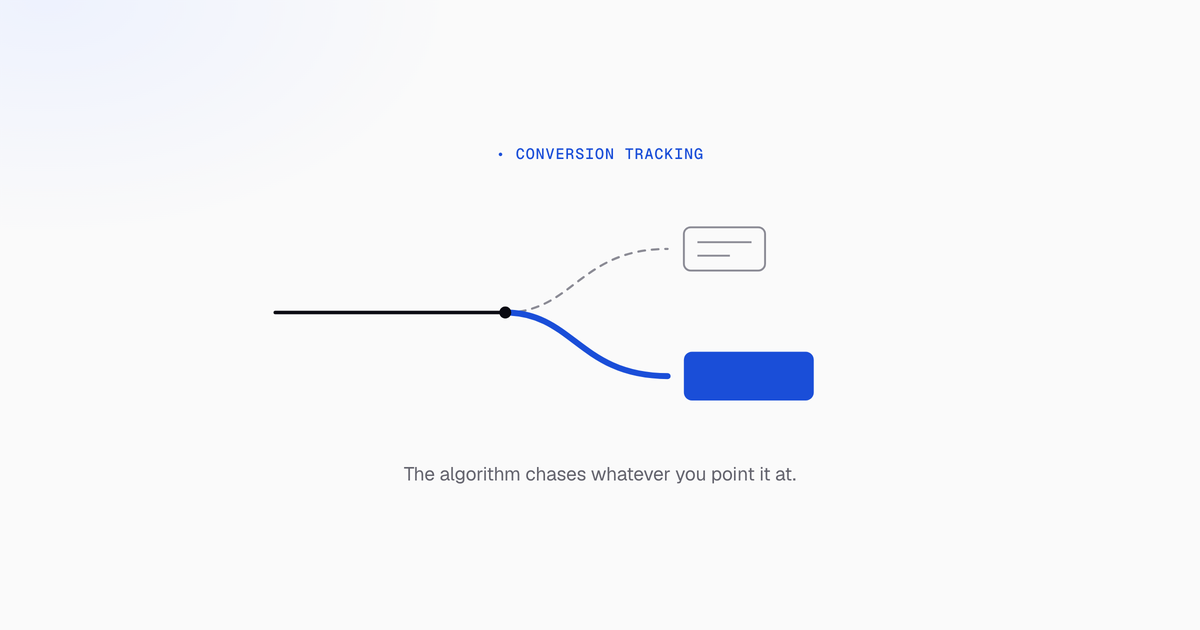
Smart Bidding optimizes toward whatever you marked as a conversion. Point the conversion action at revenue and the algorithm goes looking for customers. Point it at a thank-you page and it goes looking for whoever fills out forms most readily: a different population, and a cheaper one.
In most accounts we take over, fixing what gets counted is the single biggest change we make. This covers the setup and the settings that quietly decide what your account is chasing.
The setup, start to finish
The path below uses Google Tag Manager for deployment and the native Google Ads conversion tag for collection. Throughout, the running example is a “Submit lead form” as a Primary conversion and a “Download PDF” as Secondary, so the two tiers stay concrete.
Start in Google Ads: Goals → Summary → + Create conversion action → Website. Enter your domain, let Google scan for an existing tag, and choose Add a conversion action manually rather than importing from GA4. That keeps the definition of what counts inside Google Ads, where the bidding decisions are made.
Then turn on auto-tagging: Admin → Account Settings → Auto-tagging. Without it you can’t reliably match clicks to conversions, and offline import, which depends on the GCLID, won’t work at all.
Why this comes before bidding
Target CPA, Maximize Conversions, and Target ROAS only see what you marked Primary. Mark a cheap, easy event Primary and the algorithm optimizes for it, whether or not it relates to revenue.
Picture a company running Performance Max where “Page view” and “Started form” are Primary while “Demo booked” is Secondary. Smart Bidding produces a mountain of low-quality leads and a flatteringly low cost per lead. The dashboard looks like success. Sales is drowning.
The contrast that matters:
- Setup A. Primary is “Thank-you page after any form.” The algorithm optimizes for anyone who submits anything: support requests, duplicates, tire-kickers.
- Setup B. Primary is “Qualified lead from CRM import.” Micro-conversions sit as Secondary. Now it optimizes for the click patterns that produce actual qualified leads.
Same budget, same keywords, completely different behavior. This is why we don’t switch a large account onto Smart Bidding until the conversion setup has been audited.
Primary, Secondary, and conversion categories
A conversion is a valuable action after an ad click. In Google Ads you define these as conversion actions. GA4 has a parallel concept in key events, but GA4 events don’t drive bidding unless you import them into Google Ads.
See what exists under Goals → Summary. Actions are grouped by category. Pick the closest real one rather than defaulting everything to “Other”:
- Submit lead form for B2B lead capture
- Purchase for ecommerce
- Book appointment for service businesses
- Phone call lead for inbound sales calls
Primary conversions appear in the “Conversions” column and drive Smart Bidding. Only actions tightly connected to revenue belong here.
Secondary conversions appear only in “All conversions.” They don’t drive bidding but stay visible for analysis, the right home for content downloads, video views, newsletter opt-ins.
The rule: never make soft events Primary. Scroll depth, time on site, and “session started” measure attention, not money.
Plan before you tag
Write a short measurement plan first, or you’ll end up with duplicate conversions and mismatched categories that take longer to unpick than they did to create.
| Action | Category | Status | Value |
|---|---|---|---|
| Request quote | Submit lead form | Primary | $800 est. |
| Schedule intro call | Book appointment | Primary | $600 est. |
| Download pricing PDF | Other | Secondary | n/a |
| Newsletter signup | Sign-up | Secondary | n/a |
Get sales to agree which stages represent real opportunity before anything is built. This is a half-hour conversation that prevents a quarter of bad data.
Native tag or GA4 import
You can track with a native Google Ads tag or import key events from GA4.
Native is usually the better default for lead generation: fewer moving parts, so a GA4 schema change can’t silently break your bidding; faster reporting; and direct control over categories and Primary status in the interface where bidding happens.
GA4 import earns its place when developers already maintain a solid GA4 event schema across a complex site, or when you want unified measurement with Google Ads as one source among several.
If you go that route: link the accounts under Admin → Linked accounts, mark the events as key events in GA4, then import them. Be aware it can complicate enhanced conversions if not planned deliberately.
Wiring it in Tag Manager
The site-wide Google tag. In your GTM web container, add a tag, choose Google tag, paste the
tag ID from Google Ads (it starts with AW-), and trigger it on All Pages.
A note on the Conversion Linker, because the advice online is muddled. Conversion Linker
functionality is included in the Google tag, so where the Google tag is deployed with your AW- ID
and firing on every page, a separate Conversion Linker tag is redundant. That is a narrower
condition than it sounds. Plenty of GTM setups still need the standalone tag, and it remains a
prerequisite for enhanced conversions. Verify in Tag Assistant that click IDs are being stored
before you remove anything.
The conversion tag. Add a tag of type Google Ads Conversion Tracking, enter the Conversion
ID and label from the conversion action, and trigger it on a specific event: a lead_form_submitted
dataLayer push, a form submission trigger, or a thank-you pageview.
Watch for double-tagging. If a CMS plugin already injects a Google Ads tag for the same action, disable one. Duplicates inflate your numbers and mislead the bidding. Check in Tag Assistant before you publish.
Creating the conversion action
Under Goals → Summary → + Create conversion action → Website → Add a conversion action manually:
Name it descriptively, like lead_form_submit_us_en, so you can tell markets and funnel stages
apart six months from now.
Value. Either a flat estimate per conversion, or dynamic values passed from the data layer. Ecommerce should pass real transaction value.
Counting. Use One for lead generation, so repeat submissions from one person after one click count once. Use Every for ecommerce, where each transaction is distinct revenue.
Click-through window. Often 30 days by default. For long B2B sales cycles, extend to 60 or 90 so late conversions still get attributed. Otherwise your best campaigns look worse than they are.
Primary or Secondary. Sales-qualified leads, purchases, and subscription starts are Primary. Newsletter opt-ins, downloads, and webinar registrations are Secondary.
Getting the tiers right
A DTC brand sets “Add to cart” and “View product” as Primary alongside “Purchase.” Smart Bidding optimizes toward the cheapest event available, add to cart, and ROAS slides while the conversion count climbs. Move Primary to “Purchase” alone and the cart events to Secondary, and the account starts chasing revenue again.
A clean lead-gen setup:
| Conversion action | Status | Why |
|---|---|---|
| Qualified lead (CRM import) | Primary | Tied directly to pipeline |
| Booked consultation | Primary | Strong purchase intent |
| Initial form submitted | Secondary | Useful for funnel analysis |
| Phone call > 60 seconds | Secondary | Signals quality, not conclusive |
| Download case study | Secondary | Engagement only |
Changing Primary status resets Smart Bidding’s learning temporarily, so coordinate the timing and don’t flip these every few days.
Phone calls and the minimum duration
Two options: calls from ads, using Google forwarding numbers on call assets, and calls to a number on your website after an ad click. Set them up under Goals → Summary → + Create conversion action → Phone calls.
The minimum call length setting is the important one. Set a threshold of 60 or 90 seconds to filter wrong numbers, support calls, and spam. Without it, Smart Bidding optimizes for five-second calls, which is worse than not tracking calls at all, because it actively trains the algorithm toward whoever hangs up fastest.
Use “Sales call > 60s” as Primary where inbound calls reliably produce revenue. Keep click-to-call button presses that never connect as Secondary.
Enhanced conversions
Enhanced conversions send hashed first-party identifiers (email, phone, name, postal code) alongside each conversion, improving match rates as third-party cookies disappear.
Enable under Goals → Summary → [select the action] → Enhanced conversions.
Worth knowing if you set this up before mid-2026: Google has consolidated enhanced conversions into a single on/off setting. From April 2026 the system began accepting user-provided data from website tags, Data Manager, and API workflows simultaneously; from June 2026 enhanced conversions for web and for leads became one unified feature, and the old screen where you picked between the Google tag, GTM, or the API is gone. Existing users were migrated automatically where the customer data terms had already been accepted.
On the GTM side: confirm the dataLayer carries email and phone at conversion time, create Data Layer Variables for each, then enable Include user-provided data from your website on the conversion tag and map the fields.
Data is hashed with SHA-256 in the browser before it’s sent, but you still need appropriate consent. This has to respect your Consent Mode configuration, and you must have accepted Google’s customer data terms.
Offline conversion import with GCLID
Most B2B deals close weeks or months after the lead arrives. Raw form fills can’t tell Google which clicks produced revenue; offline import can.
The GCLID is the thread. It’s a unique ID on every auto-tagged click. Capture it in a hidden form field, store it on the CRM record, and export it back when the lead reaches a meaningful stage.
Be realistic about the work. Someone has to add the GCLID field and make sure it persists. Sales ops has to define which stage triggers an export. It needs marketing, CRM, and development to cooperate, which is usually the real blocker. The technical setup rarely is.
The flow: Goals → Summary → + Create conversion action → Import → Other data sources or CRMs. Create the action (“Opportunity created,” “Closed won”), then upload a file carrying Google Click ID, Conversion Name, Conversion Time, and Conversion Value.
One change worth knowing about. Since 15 June 2026, Google has
moved offline conversion imports out of the Google Ads API
and into the Data Manager API. Integrations that weren’t already uploading during the qualifying
window are not allowlisted for legacy access and will hit a
CUSTOMER_NOT_ALLOWLISTED_FOR_THIS_FEATURE error. If you’re building this now, build it on the Data
Manager API. And if you inherited an integration that broke this summer, this is probably why.
Start with one offline conversion type as Primary and leave the online form submission Secondary once you trust the pipeline.
Server-side tracking
Server-side means sending conversion hits from your server through a server-side GTM container rather than the browser. It’s more resilient to ad blockers and browser restrictions, and gives you tighter control over what gets sent.
It also needs real infrastructure and engineering time, so it suits high-spend accounts where the incremental visibility justifies the cost. Fix basic web tracking, enhanced conversions, and offline import first. They deliver more for far less effort.
Settings that quietly change your numbers
Count: Every vs One. Ecommerce uses Every. Lead generation uses One, or repeat submissions from a single person inflate everything downstream.
Click-through window. Short cycles are fine at 30 days. Long B2B cycles need 60 or 90, or you systematically undercount your best campaigns.
Engaged-view and view-through windows. Relevant to video and Performance Max. Useful for understanding brand impact, misleading if treated as equivalent to click-through conversions.
Attribution model. Data-driven is the usual default. Pick one and stay with it; switching frequently makes period-over-period comparison meaningless. Record the date of any change.
Testing before you trust it
Conversions take hours to appear. You don’t want to find a broken tag after a week of Smart Bidding steering toward nothing.
- Open Preview in GTM and complete the conversion on your site.
- Confirm the Google tag fires on page load and the conversion tag fires on the right event.
- Use Tag Assistant to verify the Conversion ID, label, and parameters. With enhanced conversions, check the user-data fields are present and correctly formatted.
Common failures:
- Nothing after 24 to 48 hours. Check triggers, look for JavaScript errors, verify auto-tagging is on and the account ID is right.
- A sudden spike. Almost always double-tagging. The same action firing from a GA4 import and a native tag, or from a plugin and GTM together.
- Missing values. The value field isn’t populated, or the event isn’t passing a number.
When in doubt, run a minimal test campaign, click your own ad, complete the conversion, and watch for it. Keep bids conservative for a week or two while you validate.
Turning this into a lower cost per lead
You can’t sustainably lower cost per lead while the account optimizes toward the wrong action.
- Clean the Primary definition first, then enable Target CPA or Maximize Conversions with a realistic cap. The algorithm can only chase what you show it.
- Use Secondary conversions diagnostically to see which campaigns drive early-funnel engagement without letting those events steer bids.
- Assign values even for lead gen. Higher values on high-margin services lets Maximize Conversion Value with Target ROAS prioritize the traffic worth having.
- Call conversions with a duration threshold as Primary for phone-heavy businesses. Smart Bidding will favor the keywords and hours that produce longer conversations.
Compare the “Conv.” and “All conv.” columns. A large gap means campaigns are generating engagement but not outcomes. Tighten the targeting or the offer.
Auditing conversion actions is usually the first lever to pull, before bids, audiences, or keywords. Everything downstream inherits this decision.
Consent and privacy
In the EU, UK, Switzerland and similar jurisdictions, Consent Mode is effectively mandatory for compliant tracking.
Your banner collects the choice; the Google tag and GTM read those signals and adjust: full tags for consenting users, modeled conversions otherwise. Enhanced conversions and user-provided data have to respect those states.
If importing from GA4, enable Google signals under Admin → Data Settings → Data Collection.
You remain responsible for obtaining consent and keeping your privacy policy current. Loop in legal before rolling out enhanced conversions or server-side tracking.
What we find in audits
- Every conversion labeled “Website lead,” with no distinction between a newsletter signup and a booked demo. Rationalize to a small set tied to real outcomes.
- Micro-events set as Primary, feeding the bidding noise. Demote or remove them.
- One action tracked three ways. GA4 import, native tag, and a third-party tool all firing on the same submission. Pick one source of truth.
- Calls tracked with no minimum duration. Set one, based on how long a real conversation actually takes in your business.
Conversion tracking isn’t a checkbox. Products launch, funnels change, and what represented revenue six months ago may not now. Review it quarterly, and keep a log of what exists and when it changed.